Getting Started with AGS - Part 2
Remember, adventure games are made up of several rooms, which
the player moves between in order to play the game.
Creating your first room
In the AGS editor, click on the "Settings" option under
"Room Editor" in the left hand pane. You should see a screen
similar to the following:
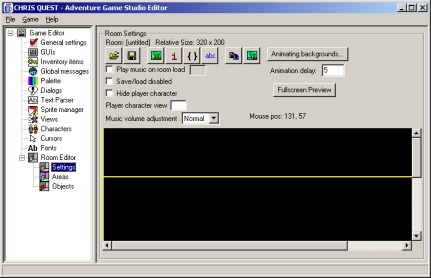
The room editor's main pane
As you have only just loaded the editor, the room here is empty.
The room editor is made up of three different modes - Settings, Areas
and Objects.
- The Settings pane has the overall room options, such as
whether the player character is visible or not.
- The Areas pane allows you to set up the various types of area
within the room, such as where the player can walk and what they can
interact with.
- The Objects pane allows you to set up objects in the room -
objects are items which can be switched on and off, and can move
around the room.
The Background Now, the first thing you need to do is draw the
background for the room. Depending on what resolution you want to run the
game at, you should draw it at either 320x200, 320x240, 640x400 or
640x480. Also, make sure your image is created at the colour depth that
you chose earlier for the game. Draw the image in your favourite paint
package, and once done, save it as a BMP or PCX file. Then, return to the
AGS Editor, and click the "Import Background" button. 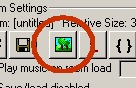
The "Import Background" button
Find the file you just
created, and click Open. If you get a message asking which resolution the
image is drawn for, select the appropriate option. (You are asked this
because a 640x480 image, for example, could either be a full-screen image
for a 640x480 game, or it could be a scrolling background for a 320x200
game). You should see the black area in the bottom part of
the Editor replaced by your image. Edges You'll see four yellow
lines drawn across your image in various places. These are the room edges,
and they define how far the character needs to walk to be considered
to have left the room. Click and drag them to position them appropriately.
Bear in mind that it's the character's feet that are compared with
these lines when positioning. 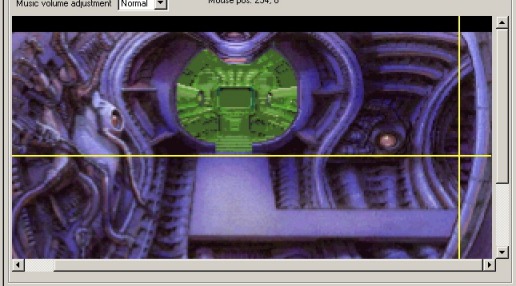
I've lined up the top and right edges correctly
At
the moment, walking past the edge won't actually cause anything to happen,
but we'll deal with that later. Walkable Areas Now, it's vital
that we define the room's walkable areas. These define where
characters are allowed to walk within the room. Choose the
"Areas" mode from the left-hand tree, and then make sure that
"Walkable areas" is selected in the combobox at the top of the
pane: 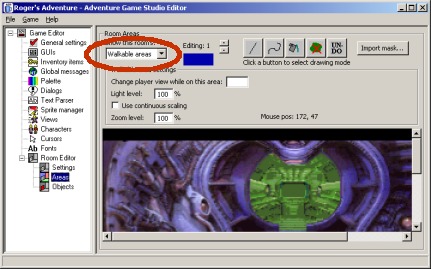
Make sure "Walkable areas" is the current selection
Now,
you'll notice there are five buttons along the top of the window, allowing
you to perform the tasks Line, Freehand, Fill, Wipe Colour and Undo,
similar to a normal paint program. What we need to do is to fill in the
areas of the room where the player is allowed to walk. In the game, the
bottom middle of the character is checked against these areas, so it's
probably wise not to paint right up to the edge where you want them to go,
since the character will appear to be further over. The best way to
start off is with the Line tool. Draw some lines to encompass the area
that you want to be walkable. Make sure they are all joined up, and then
choose the Fill tool and click in the middle of the area, and it should be
filled blue. If the whole screen goes blue, click Undo, then use the Line
tool to make sure all the edges of the area are connected up, and try
again. 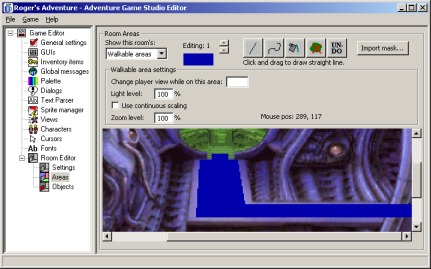
I've drawn a walkable area over the path in the image.
Walk-behind
areas The next job we need to do is to define the walk-behind areas.
These areas (called "Priorities" by AGI and some other adventure
game tools) tell the game where the character needs to be drawn behind the
background. For example, in my example screen here, the player needs to
walk in from behind the curved wall on the right. Choose
"Walk-behinds" from the combobox at the top of the screen. Your
walkable area mask will disappear. Now, we draw on the walk-behind area
in the same way as we did the walkable area - in fact, all the same
drawing tools are available. My result looks like this: 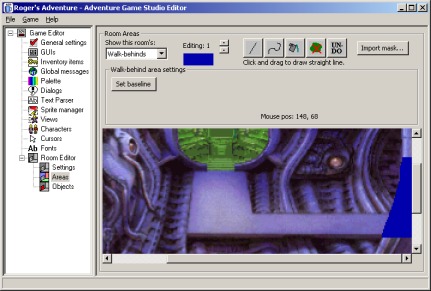
The walk-behind area painted over the pillar
Notice that I
haven't bothered to make the whole of the pillar a walk-behind from top to
bottom - using my knowledge of the walkable areas and the height of the
character, I can just draw a walk-behind in the places where it's possible
for the character to be. Now that we've done that, there's a very
important next step in order to make the area work - the baseline.
The baseline is a horizontal line, which tells the game where the
character has to be in order to be drawn behind the area. For example, if
you had a table in the middle of the room, you'd only want him drawn
behind the table if he was standing behind it. You normally place a
baseline at the lowest point of the walk-behind area. Click the "Set
Baseline" button, then click at the bottom of your area, and a
horizontal line will appear there. You may have noticed at the top of
the window a coloured block with "Editing: 1" written above it.
By default, you've been drawing blue areas onto the screen. But what if we
had two pillars, in different places? We wouldn't want the same baseline
to apply to both. By changing the active colour, you can draw multiple
areas onto the screen and let them each have their own baseline
setting. Trying out the game Ok, we've slogged away at
making our room - now it's about time to give it a go. The first,
essential step is to save the room. Choose the "File" menu, then
"Save Room As...". In the file selector, type "room1"
and press OK. AGS uses numbered rooms, from 1 to 300. The filenames of
these must be "ROOMX.CRM", where X is the room number. Only
rooms named this way will be recognised by the game engine. Now, choose
"Save Game" from the File menu - this saves all your valuable
work to disk. Next, choose "Setup Game" from the File menu.
Select the appropriate resolution for your game. Press the
"Save" button. Finally, it all comes together - select
"Test Game" from the File menu. Your game should fire up and you
should see your room with the character in it. Walk around the screen,
testing out the walkable and walk-behind areas.
 |
If the player is stuck and won't move, he probably didn't start on
a walkable area. If this is the case, go to the
"Characters" mode in the editor, and change the
"Starts at X" and "Y" boxes. You can find out
co-ordinates from the Room Settings pane (as you move the mouse, the
co-ordinates are displayed above the background image). |
|
The normal way of exiting the game is to press Ctrl+Q. It's
possible that during development of your game, you may create a
script that causes the game to lock up - in this case, the emergency
break key Alt+X will exit the game for you. |
Go to part 3: Adding interaction
Tutorial last updated 9 November 2002. Copyright (c) 2001-2002
Chris Jones.
|
