Getting Started with AGS
So, you've downloaded AGS. You want to make an adventure game. But
where do you start?
Firstly, I should say at this point - download the demo game, and use
it as a reference if you get stuck. Play it through before you read this
tutorial, so you get a feel for how AGS works. The demo game comes in
source form, so you can check out how it was all done.
(NOTE: before we start, this tutorial was made using
v2.5b of AGS. If you have a newer version, there may be minor
inconsistencies in the screenshots where extra options have been added and
so forth, but don't worry about it).
Creating the game
Now, you feel you're ready to go ahead and make a game of
your own. So, start up the AGS Editor by double-clicking the AGSEDIT.EXE
file, and you should be greeted by the following screen:
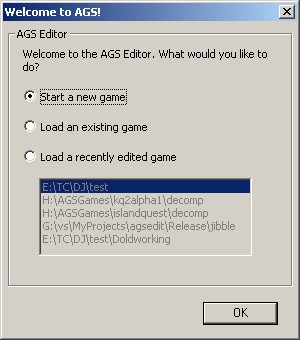
The "Welcome to AGS" dialog
Make sure that "Start a new game" is selected, and click OK. You
will be prompted for a name for your game.
The name that you enter here is only used for the the name
of the folder that your game is created in, and the name of the final EXE
file you compile. It must be 15 characters or less.
(NOTE: If you are going to want to make a DOS compile, you should
ensure it is 8 characters or less)
Now, you should be faced with the main AGS Editor window:
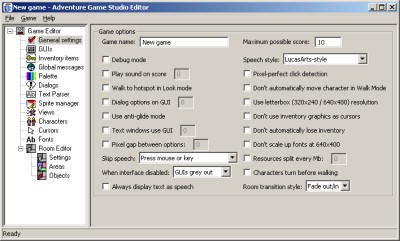
The main editor window
All these options and modes can look a bit intimidating at first, but
don't worry - it's not as complex as it seems!
Starting off
The first thing to do is to change that horrible "New game"
in the title bar into something more catchy. For the purposes of this
tutorial, I'm going to call it the incredibly lame "Roger's Adventure", but you can
use whatever you like.
The name you type here is displayed in the taskbar while your game is
running, and will also be the window caption if the player runs the game
in Windowed mode.
Now, let's briefly examine the various options we have in front of us.
Let's check these options to begin with:
- Debug Mode - Since we are going to be developing the game, we
want the assistance of the debug features in the engine. This allows
you to do things like teleport to different rooms, give yourself all
the inventory items, and so forth. You would un-check this before
compiling the final version of the game when it's complete.
- Anti-glide mode - without it, the character movement can look
somewhat silly.
- Pixel-perfect click detection - improves the game playability
by making sure that clicking transparent regions of objects won't
trigger them.
- Don't automatically lose inventory - makes things less
confusing later on because inventory items won't automatically
disappear when the player does things.
- Characters turn before walking - if the character is facing
right, and you click to move him left, he'll rotate round before
starting to move. This is what the Sierra and Lucasarts
point-and-click games did, and looks a bit more professional.
Personally, I always check these 5 options when starting a new game. As
you get a feel for AGS, you can decide what suits you best, and change
these options again later. My main window now looks like this:
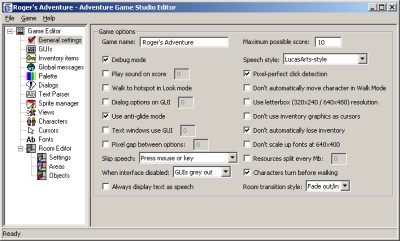
The main window after I make my adjustments
Colour choices
Now, at this stage we really need to decide whether we want to create a
palette-based (8-bit, 256-colour) game, or a hi-color (16-bit) game.
- The advantage of a palette is that the game size will be smaller,
and thus easier to distribute on the Internet. The game will also run
up to twice as fast as using hi-colour. Neat fading and colour cycling
effects are also possible.
- The advantage of hi-colour is that you don't have to mess around
with palette slots, you just import your graphics and they just work.
I'll cover both methods briefly below.
(NOTE: We need to decide now because when you import graphics, they
will be set to the game's colour depth. Should you change your mind later,
you would have to re-import all the graphics).
Creating a 256-colour game
Click on the "Palette" entry in the tree on the left. You
should see this:
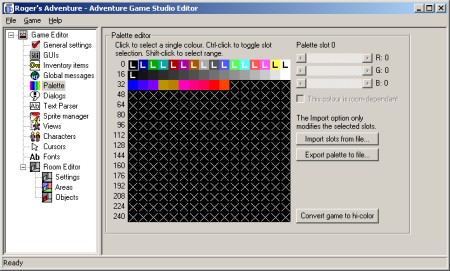
The Palette Editor
The palette display has a grid with the 256 colour slots on it. The
first 17 are marked "L", which is short for Locked. These slots
are fixed and you cannot change the colours of them. They are needed for
various in-game displays such as the Save/Load dialogs, and so on.
There are then about 25 colours displayed with no "L". These
are game-wide colours. That means that those palette slots have
those colours throughout the game, in every single room.
Finally, the remaining colours, marked "X", are background
colours and vary from room to room. This allows for different types of
background to use different ranges of colours.
The default palette setup is a little badly weighted. Your GUI and main
character graphics will have to use just the game-wide colours, since they
are shown in more than one room. Therefore, unless you want a greyscale
main character, the colours displayed are probably not enough.
So, let's swap some background colours for some game-wide ones. Select
the first "X" slot, then hold shift and click on the last slot
in the row marked "80". The screen should look as follows:
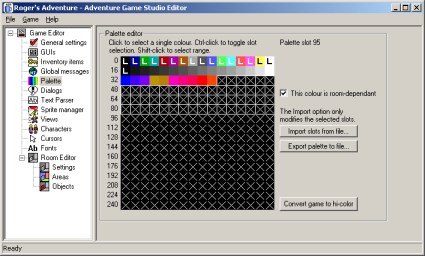
We have selected colours 42-95
Now, un-check the "This colour is room-dependant" box. All
the selected "X"s turn into various colours.
If you select one of these colours, you'll see some R, G and B sliders
appear on the right, where you can manually adjust the colour of that
slot. You can either do this for every single colour, or you can set up
slots 42-95 in another paint package, save a PCX file, and use the
"Import slots from file" button.
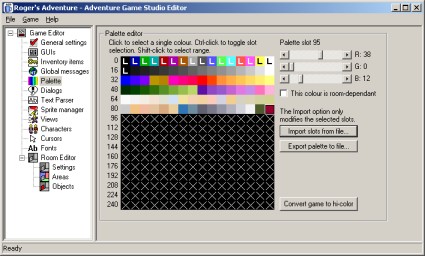
I've imported various colours
As you can see from the screenshot above, I've chosen to import various
skin-type colours as well as various other ranges. What colours you use is
up to you, and depends on what sort of colour scheme you're going for with
your graphics.
(NOTE: You should set up the palette as well as you can now, because
changing it later may require you to re-import some graphics).
Creating a 16-bit colour game
Again, go to the Palette mode. Click the button in the bottom-right
labelled "Convert game to hi-color". A warning message will
prompt you to make sure. Confirm it, and you're done.
Go to part 2: Creating your first room
Tutorial last updated 26 August 2002. Copyright (c) 2001-2002
Chris Jones.
|
