Getting Started with AGS - Part 4
Objects
Objects are images on the screen which, unlike the screen background,
can move, change and disappear. You use objects for things in the room
that the player can take (since they can disappear), and for things which
need to animate.
So, let's revisit the age-old "key" inventory item. Let's say
we've got a locked door, and the player can pick up a key from another
room to open it with. Please don't use this puzzle when you're making a
proper game, it's been done far too many times ;-)
Go to the Objects pane under the Room Editor. Click the
"New object" button at the top of the screen. Nothing will seem
to happen, but you now click on the background image, and a new object
will be placed there as a blue cup. Don't worry if you don't put it in the
right place, you can move it later.
The first thing we need to do is to change how it looks. That blue cup
we can see is the default sprite in AGS, and will appear anywhere that you
haven't chosen a replacement for. Click the "Change image"
button in the top part of the screen.
The screen will now change to present you with the Sprite Manager.
We'll explain this in more detail later, but basically it is the focal
point of AGS where you import and export all the graphics (except room
backgrounds). You should see a small key picture as sprite number 2.
Double-click that for now, we'll import our own graphics later.
You should now be returned to the Objects pane, and see that the blue
cup has changed into a key. You can move it around by left-clicking and
dragging the sprite within the background image. Place it somewhere
sensible on your screen. Also, notice in the top part of the editor is an
"Object name" box. This allows to to name the item, similar to
the Hotspot Name box for hotspots.
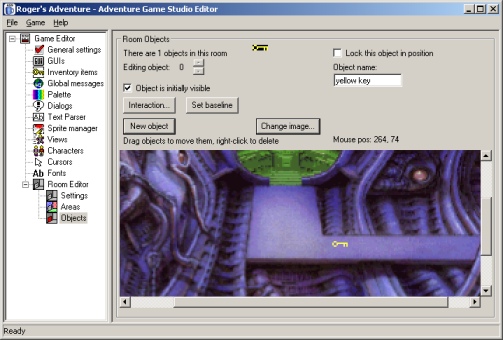
I've placed the key cunningly in the middle of the walkway ;-)
Before we enable the key to be taken by the player, let me quickly go
over the other options on this screen:
- Lock this object in position - sometimes, you might have two
objects that are overlapping each other. In this case, you can lock
one of the objects, which prevents it from being selected and dragged.
The Lock setting is only temporary and is not saved in your game
files, as it's only needed briefly in order to get at an object that's
stuck behind another.
- Set baseline - normally, the baseline for an object is set to
the bottom of the object graphic (baselines are used to calculate
which items on the screen are drawn in front and which are drawn at
the back). However, in some cases you might want to override this.
What you'll notice with our key is that if the player walks just
behind it, the key will appear in front of his feet. This is not what
we want, since the key is supposed to be lying flat on the ground. To
correct this, click Set Baseline, then click near the top of the room
image. A blue line will be drawn across. This will make sure that the
player is always drawn in front of the key.
- Object is initially visible - this toggles whether the object
is switched on at the beginning of the game or not. For our key we
want it checked, but sometimes you'll have objects which you don't
want the player to see until they've done something else in the game.
 |
The game speed is directly related to the number and size of
objects on-screen. AGS imposes a limit of 10 objects per room, but
even if you use all of these and have them visible at the same time,
the game speed could suffer. |
Right, now back to the pressing matter at hand - letting the player
pick up the key.
Inventory
Now wait, there's one more step we need to do first. At the moment we
could let the player pick up the key, but then what would happen to it?
Where would it go? We need to define the player's inventory.
Click on the "Inventory Items" mode in the left-hand
tree. You will see that there are already two items defined -
"Key" and "Pink poster". These are just defaults to
help you get started. Select "1: Key" in the list. You should
see the key image appear on the right. But that's a bit small for an
inventory item, I'm sure I saw something better in the sprite list
earlier.
Click the "Change image" button below the key, and the sprite
manager re-appears. Scroll down to sprite number 19, and you should see
that it's a much larger picture of a key. Let's use that as our inventory
icon. Double-click the sprite to select it.
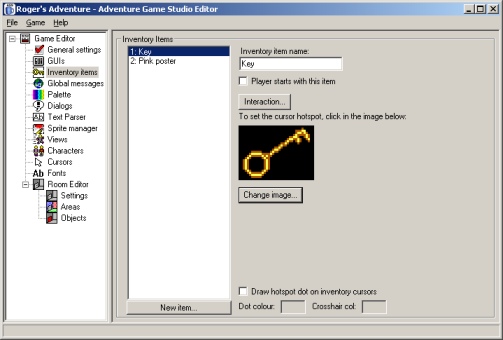
Yay, we've got a big inventory icon for the key
Ok, there are a few other settings on this screen, but let's return to
our objective - letting the player pick up the key. Note that the
inventory item number of the key here is 1, as we will need it later.
Back to the interactions
Go back to the Objects pane of the Room Editor, and click on,
yes you've guessed it, the Interaction button. We see our old
friend, the Interaction Editor, once again. The events here are very
similar to the ones we had for the hotspot.
Notice there are two possibilities - "Interact object" and
"Pick up object". We actually want to use the "Interact
object" event, because we are using the default Sierra-style
interface which doesn't have a specific Pick Up mode. The "Pick
up", "Usermode1" and "Usermode2" events are
useful if you go for a lucasarts-style interface which has more verb types
available to the player.
So, double-click on "Interact object". Now, when the player
picks it up we want two things to happen - firstly, the object on-screen
needs to disappear, and secondly, the inventory item needs to be added to
the player's inventory.
See if you can guess which commands we'll need from the listbox. As a
clue, we are removing object number 0 from the room, and adding inventory
item number 1 to the player's inventory.
|
Remember, to add more than one command to an event, right-click
the event and choose "New action...". |
Ok, well here's my solution. As an added bonus, I've also given the
player 5 points for their trouble, but you don't need to have that third
command:
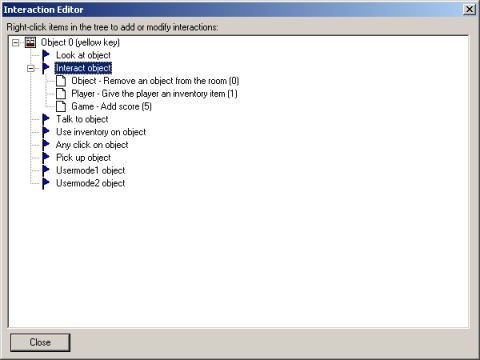
I've added the two commands we need (and one we don't)
Note that our solution is not perfect - the player can click the hand
icon on the key from anywhere in the room and it will disappear. We are
also not displaying a message informing the player of what happened. But,
the functionality is there, and this will do fine for now.
Okey, so we now have a fully-working first room. Save and test the game
as before, and try it out. Once the player has taken the key, call up his
inventory and you should see the large key picture there.
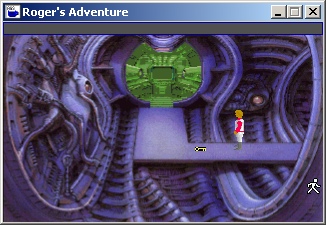
Roger stands contemplating the key
Room Settings
Finally, let's just quickly go over the available settings on the
Settings pane:
- Play music on room load - if set, you can type a music number
in the box and that background music will start playing when the
player enters the room. For more about music and sound, see later in
the manual.
- Save/load disabled - if checked, then if the player tries to
save or load the game while in this room, global message 983
("Sorry, not now") is displayed instead. Global messages are
described later.
- Hide player character - if checked, the player character will
not be visible in this room, and the Walk mode will be disabled.
Useful for close-up displays of control panels and so forth.
- Player character view - you can type a number in here to
override the player character's graphic for this room. For example, if
you have an overhead map screen, you will probably want a different
image of the character from an overhead perspective.
- Music volume adjustment - this allows you to modify the
background music volume for this screen.
NOTE: This is the end of the HTML tutorial for now.
Please continue with the "Setting up the game" part of the main
manual.
Next week: Managing Inventory
Tutorial last updated 24 November 2002. Copyright (c) 2001-2002
Chris Jones.
|
Tutorial level:
Beginner
Assumed Knowledge:
Completed part 3 |
